Wedding Seating Chart Template: Assign Tables Without Starting Over
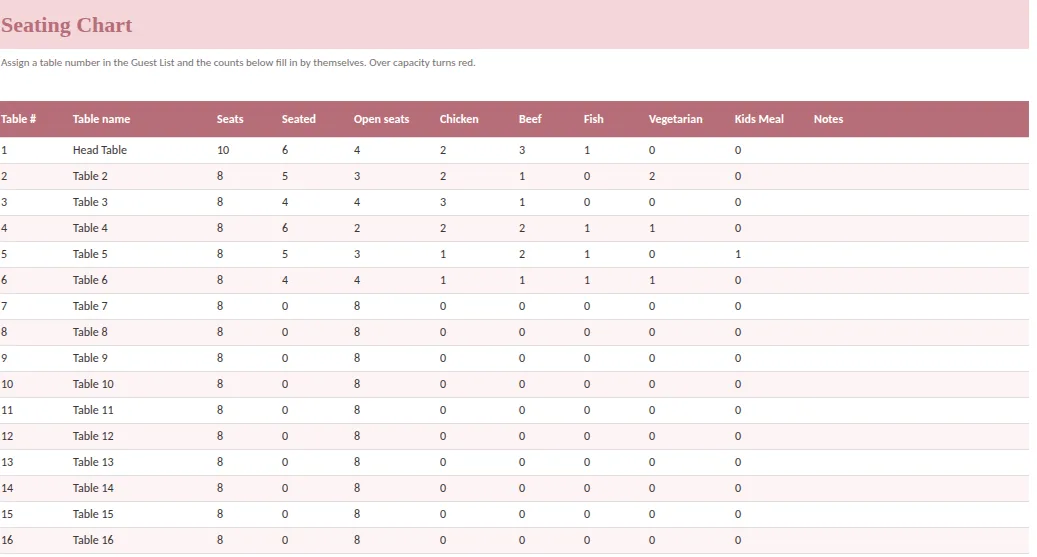
A wedding seating chart is two puzzles: who sits at which table, and where each table sits in the room. Most people start with the drawing and end up redoing it every time an RSVP changes. A better seating chart template solves the first puzzle in a list that reads from your guest list, and only then moves to the floor plan.
This guide gives you the method, the rules that avoid awkward tables, and the checks to run before you hand the chart to your venue.
Get the room facts first
Before assigning a single name, ask the venue three things: how many tables fit, how many seats each table has and what clearances are required for aisles, service and a dance floor. Fixed features such as doors, a bar, a stage or a buffet determine where tables can go. A diagram copied from someone else's wedding will not match your room.
Then fix your table labels. Numbers are easiest: Table 1 is the head table, then 2, 3, 4 and so on. If you rename a table later, update the guest records and the floor plan together, or guests and servers will end up at different tables.
Build the chart from confirmed guests
Your seating chart is only as reliable as your guest list. Use one row per person, with an RSVP status and a table number column. Then:
- Start with people who said yes. Keep pending guests in a separate list so you can see how much flexibility is left.
- Seat by relationship first. Family groups, college friends and work colleagues are natural tables.
- Mix on purpose. One table of "everyone else" is where the interesting conversations happen. Put a few outgoing people at each.
- Respect practical needs. Mobility, proximity to speakers, a table close to the restroom for a guest who needs it, a quieter table for older relatives. Ask rather than assume.
- Place the head table early. It sets the position of the rest.
- Keep kids and their parents close, or give children their own table within sight.
What a good template shows per table
| Field | Why you need it |
|---|---|
| Table number and name | One label everyone uses |
| Seats | Capacity from the venue |
| Seated | Count of guests assigned |
| Open seats | Seats minus seated; the number that tells you where to move someone |
| Meal counts per table | Chicken, beef, fish, vegetarian, children's meal: servers need this |
| Notes | Accessibility, proximity, special items |
If these read from the guest list, then moving a guest from table 4 to table 7 updates both tables instantly. You do not recount; you look.
The layout: grid first, drawing last
Once the tables are filled, place them in the room. A simple grid with stage, dance floor, bar and buffet marked, and table numbers typed into cells, is enough for a first pass and for most venues. It is faster to change than a drawing and easier to share with a coordinator.
In the Ever After Wedding Planner, the Layout Planner tab is exactly this: a grid where you type table numbers around the stage, dance floor, bar and buffet. It is a planning grid, not a drag-and-drop tool. The visual, drag-and-drop table placement belongs to the Wedding Toolkit web app that comes with the product.
Checks before you hand it over
- Every guest who said yes has a table. Filter the guest list for Yes with an empty table.
- No table exceeds its capacity. Open seats should never be negative.
- Meal counts per table match the guest list. Total across tables equals the total meals ordered.
- Plus-ones sit with their guest unless you have a reason to separate them.
- Late changes are logged. A short list of changes after the handoff date, with who approved each.
- Place cards match the chart. If a guest cancels, remove the card.
Rules that prevent awkward tables
- Do not seat someone alone among strangers; give them one familiar face.
- Avoid placing people with a history at the same table, even if the numbers work.
- Do not put every friend of the groom or bride on the far side of the room. It reads as two parties.
- Keep older relatives out of the speaker line and away from the loudest part of the floor.
From chart to day-of
Print the chart for the entrance and for the caterer, and give your coordinator the version with meal counts. If your planner includes the guest list, seating chart and layout in the same file, the print is one click for each. See the guest list template guide for the data the chart depends on.
A small example
Take a table of eight with six confirmed guests. Table 4 shows eight seats, six seated and two open. You move a cousin who just replied yes from the pending pile into one open seat: the table now shows seven seated, one open, and his vegetarian meal appears in the per-table meal count. You did no arithmetic.
Now imagine the same change on a hand-drawn chart: erase a name, add a name, recount the meals, check the table next to it, and hope the printed place cards still match. That is the difference between a chart that reads from the guest list and one that sits next to it.
A good seating chart ends up feeling like a small gift to your guests. They walk in, find their name and sit among people they are happy to see, and nobody knows how many versions it took to get there.
A ready-made option
Ever After Planner includes a Seating Chart tab that reads table numbers from the Guest List and shows, for each table, seats, seated, open seats and counts for each meal choice, along with a Layout Planner grid for the room. The Dashboard shows total attending and meal counts, so the final numbers for your venue are a reading rather than a recount. It works in Excel, Google Sheets and Numbers, ships with sample tables you can overwrite, and includes printable pages for the entrance and the caterer.
This guide is general planning information. Always confirm table capacities and clearances with your venue.